
Tabs and panes
Move panes and tabs around: join a tab into another as splits, turn a pane into a tab, swap panes, jump by number and drag title bars.
kitty calls a tab a tab and a split inside it a pane (kitty's own docs say "window"). This page covers moving them: pane to tab, tab to panes, and pane to pane.
Join a tab into another
Press ctrl+alt+shift+j in the tab you want to move. A list of your other tabs opens over the pane. Choose one and every pane of your tab becomes a split of that tab, keeping the arrangement it had. The emptied tab closes itself.
You can also run it from a shell inside the tab:
kittymux join                          # open the list
kittymux join --to 12 --side below     # no list: join into tab id 12, below its active pane
kittymux join --pane                   # move only this pane, not the whole tab
Find a tab id with kitty @ ls. The command acts on the kitty it is started in, and on the pane it is started from.
Controls
The list takes the keyboard and the mouse, and you can mix them.
| To | Keyboard | Mouse |
|---|---|---|
| Open the list | ctrl+alt+shift+j | |
| Narrow the list | Type. Words match the title, folder or state, in any order. Backspace deletes. | |
| Choose a tab | ↑ ↓, or ctrl+n ctrl+p. PgUp PgDn move five rows. | Hover a row. |
| Join | ⏎ | Left click a row. |
| Pick where the first pane goes | Tab cycles auto, to the right, below. | |
| Move the whole tab or only this pane | ctrl+t toggles between them. | |
| Clear the filter, then close | Esc. The first press clears a filter, the next closes. | Right click does nothing. |
| Close at once | ctrl+c, or press ctrl+alt+shift+j again. |
The header always names what moves, for example Join “api” (3 panes) into…, and the footer lists these keys. A tab that needs you comes first. A row shows the tab's state glyph, title, folder line and pane count, and says other window when the tab lives in another OS window.
What "keeping the shape" means
Moving panes one by one splits the same pane again and again. In our test a three-pane tab joining a two-pane tab arrived as panes only 7 columns wide. Join does it differently:
- It reads where each pane sits in the tab being moved, before moving anything.
- The first pane goes to a whole side of the target tab, on the side you chose.
- Every other pane goes next to the pane it was beside before, on the same side of it.
So a big pane with a stack of two beside it arrives as a big pane with a stack, taking one side of the target tab. Auto picks the right side when the target's active pane is wider than tall, and below when it is taller.
Limits
- The shape-keeping placement needs the target tab to use kitty's splits layout, which is kittymux's default. In another layout, such as
tall,gridorstack, kitty places the panes itself. They all arrive, but not in their old arrangement. - You cannot join a tab into itself, so it is never listed.
- There is no single undo. Press
ctrl+alt+don a pane to give it its own tab again, orctrl+alt+shift+dto send it to a tab you choose. - The list opens over the active pane. In a narrow pane it drops the pane count, then the folder line, before it shortens a title.
Pull a tab in instead
The same mover also runs from the deck. Open it with ctrl+alt+b, select a tab and press a: that tab's panes become splits of the tab you are in. See Peek, deck and panel.
Turn a pane into a tab
| To | Keys |
|---|---|
| Give the focused pane its own tab | ctrl+alt+d |
| Send it to a tab you choose | ctrl+alt+shift+d |
| Do the same from the deck | Open the deck, select or hover the pane and press t. |
| Do the same with the mouse | Show title bars and drag the pane onto the bar's empty space or its +. |
Number, focus and swap panes
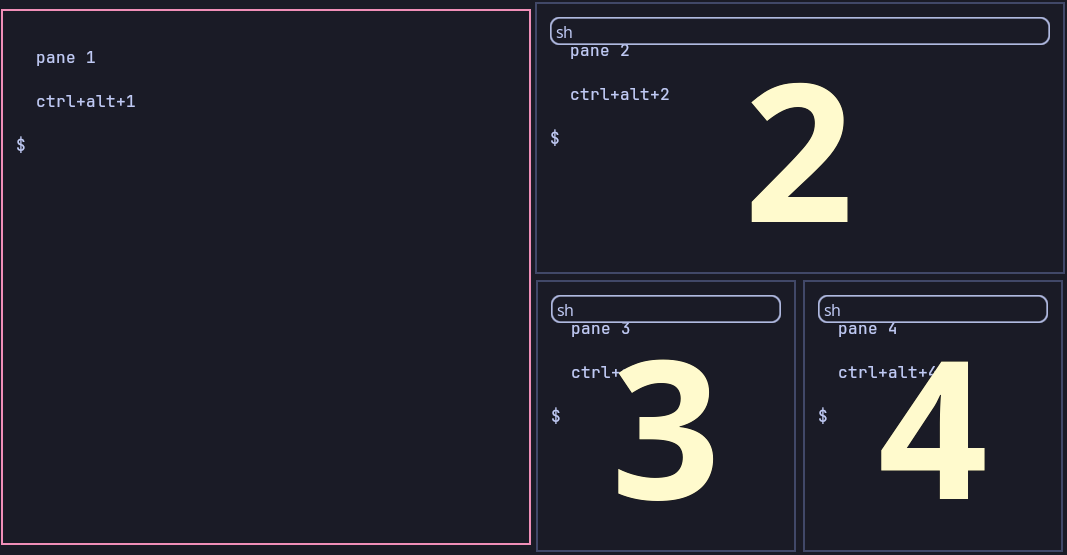
Every pane in a tab has a number, counted in the order the tab lists them. kittymux follows tmux's display-panes: press one key and every pane shows its digit.
Press ctrl+alt+e and kitty draws a large digit over every pane except the one you are in. Press that digit to go there. With only two panes it jumps straight over.
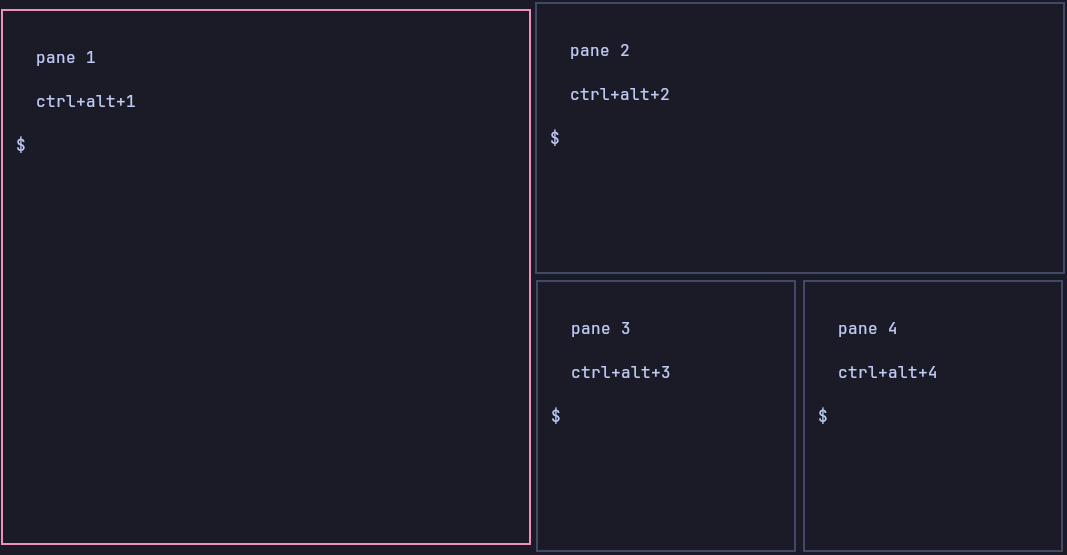
You do not need the overlay once you know the numbers. ctrl+alt+3 goes straight to pane 3. Every pane in these screenshots says which key reaches it.
| To | Keys |
|---|---|
| Show digits, then focus a pane | ctrl+alt+e, then the digit. With two panes it jumps straight over. |
| Focus pane N directly | ctrl+alt+1 to 9, using the same numbers. |
| Focus the last pane | ctrl+alt+0 |
| Go back to the pane you were in before | ctrl+alt+o |
| Open native pane controls | ctrl+alt+shift+semicolon (the semicolon key). |
| Show digits, then swap with a pane | ctrl+alt+shift+y, then the digit. |
| Move focus to a neighbour | ctrl+alt+h j k l, or shift+alt+ an arrow key. |
| Split below, and split to the right | ctrl+alt+enter and ctrl+shift+enter. |
| Zoom a pane | ctrl+alt+z |
Tabs use alt where panes use ctrl+alt: alt+1 to 9 jump to tab N and alt+0 goes to the last tab.
If you prefer letters to digits, set visual_window_select_characters asdfghjkl in your kitty.conf. The direct keys stay numeric.
Resize and equalize
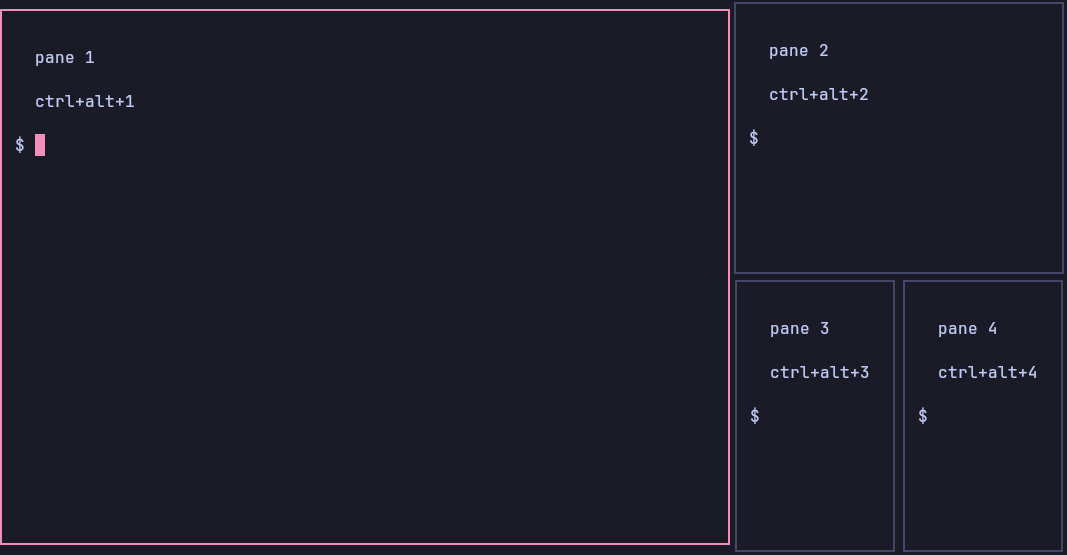
Hold alt and shift and press h, j, k or l to move the focused pane's edge: h narrower, l wider, j taller, k shorter. Each press moves it about three columns, so six presses of l take pane 1 below from 50 columns to 70.
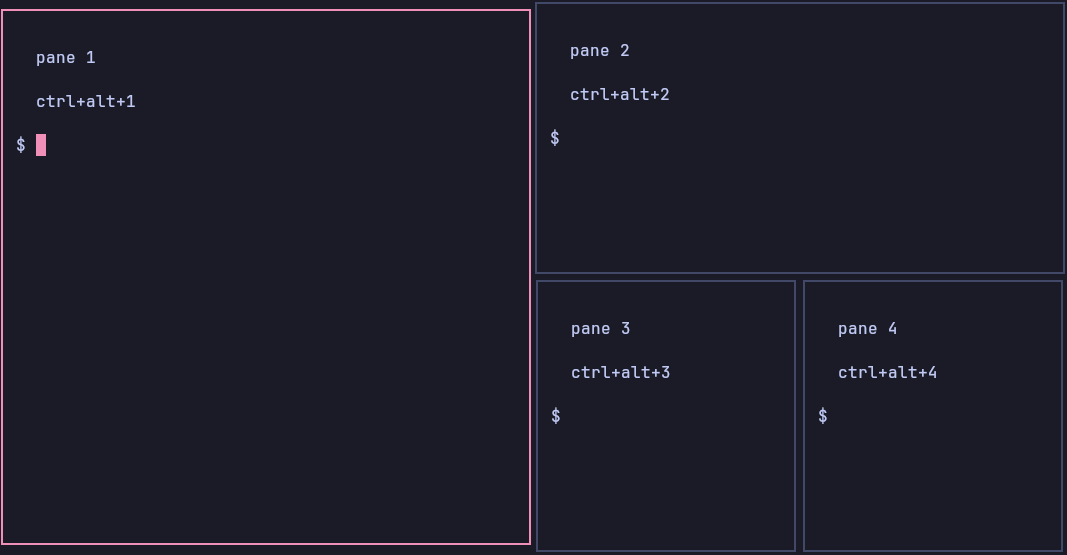
Equalize makes every split in the tab the same size again. It is alt+shift+=: hold alt and shift and press the = key (the + key on a US keyboard). It is the way back after resizing, closing a pane or zooming, and it replaces the old ctrl+alt+0, which now focuses the last pane. The same keys with ctrl in place of shift already belong to Hyprland's own column resizing, which is why a ctrl chord is not used here.
| To | Keys |
|---|---|
| Narrower, wider, taller, shorter | alt+shift+h, l, j, k |
| Make every split the same size again | alt+shift+= |
| Resize with the mouse | Drag the border between two panes. |
| Resize in a mode, one key at a time | kitty's own ctrl+shift+r, then h j k l, and esc to leave. |
The screenshots are taken by tests/shot_panes.sh, which presses these keys in a real kitty on made-up panes, so they show what the keys do and not a mock-up.
Press the pane-controls chord, then h/j/k/l to swap with a neighbour, r to rotate the current split, s to exchange its sides, e to equalize or a to choose a swap target. These use kitty’s own actions, preserving processes and pane identity. Rotation and equalization apply to the splits layout; a nested split rotates its current group. Escape cancels; the opening chord also dismisses the picker.
Pane title bars and drag and drop
Press ctrl+alt+shift+c to show a thin title bar on every pane. Press it again to hide them. The bars carry the folder line and the pane’s merged agent status, with the state mark reserved even in a narrow pane. They double as drag handles. They need kitty 0.49.2 or later.
| Drag | Result |
|---|---|
| A tab in the bar | Reorders tabs. A tab swaps once you pass the middle of the one you cross. |
| A pane's title bar onto a tab in the bar | Moves the pane into that tab. |
| A pane's title bar onto the + or empty bar space | Turns the split into its own tab. |
| A pane's title bar onto another pane's edge | Inserts it there. |
| A pane's title bar onto another pane's title bar | Swaps the two. |
A single-pane tab can be dropped onto a pane as a split in kitty 0.49.2. To merge a whole multi-pane tab while preserving its shape, use join.
To move a tab with the keyboard, use ctrl+alt+shift+← and ctrl+alt+shift+→ on a horizontal bar, or ctrl+alt+shift+↑ and ctrl+alt+shift+↓ on a vertical one. Both always work.
Drag out and merge
Drag a pane title bar onto another tab to move that pane, or onto the empty tab-bar area / + to give it its own tab. A pane dropped outside the OS window becomes its own OS window when another pane remains. Dragging a whole tab out creates an OS window with that tab's panes; a single-pane tab dragged onto a pane can become a split. Kitty owns these operations and the platform drop result; cancelled drags change nothing. With a lone pane in a lone tab there is no remaining source window to split away from.
For a whole multi-pane merge, use the join picker (ctrl+alt+shift+j) or the deck's a: kittymux preserves the source arrangement using kitty's native attach API. Native drag of a multi-pane tab reorders/moves the tab; it is not the shape-preserving multi-pane join. See Join a tab into another.
What you can do
A map of everything kittymux adds to kitty, grouped by task, with what is shipped, in beta or planned. Start here to see if it can do something.
The tab bar
Read what each tab row says, tell look-alike tabs apart with the folder line, switch between sidebar, rail and hidden modes, and resize the bar.